OTC Offers
OTC lets you negotiate bespoke fixed-rate offers with custom collateral, LLTV, oracle, rate, and term, settled onchain through the Morpho protocol. You can take an existing offer, request a quote from counterparties, or create an offer.
Note: OTC offers can specify any collateral, oracle, LLTV, rate, and term. Review every parameter carefully before taking or creating an offer, since deceptive offers may use inflated oracles or unsafe collateral. See the Tenor risk disclosures for the full risk overview.
Take an Existing Offer
The Available Offers section lists the OTC offers you can act on.
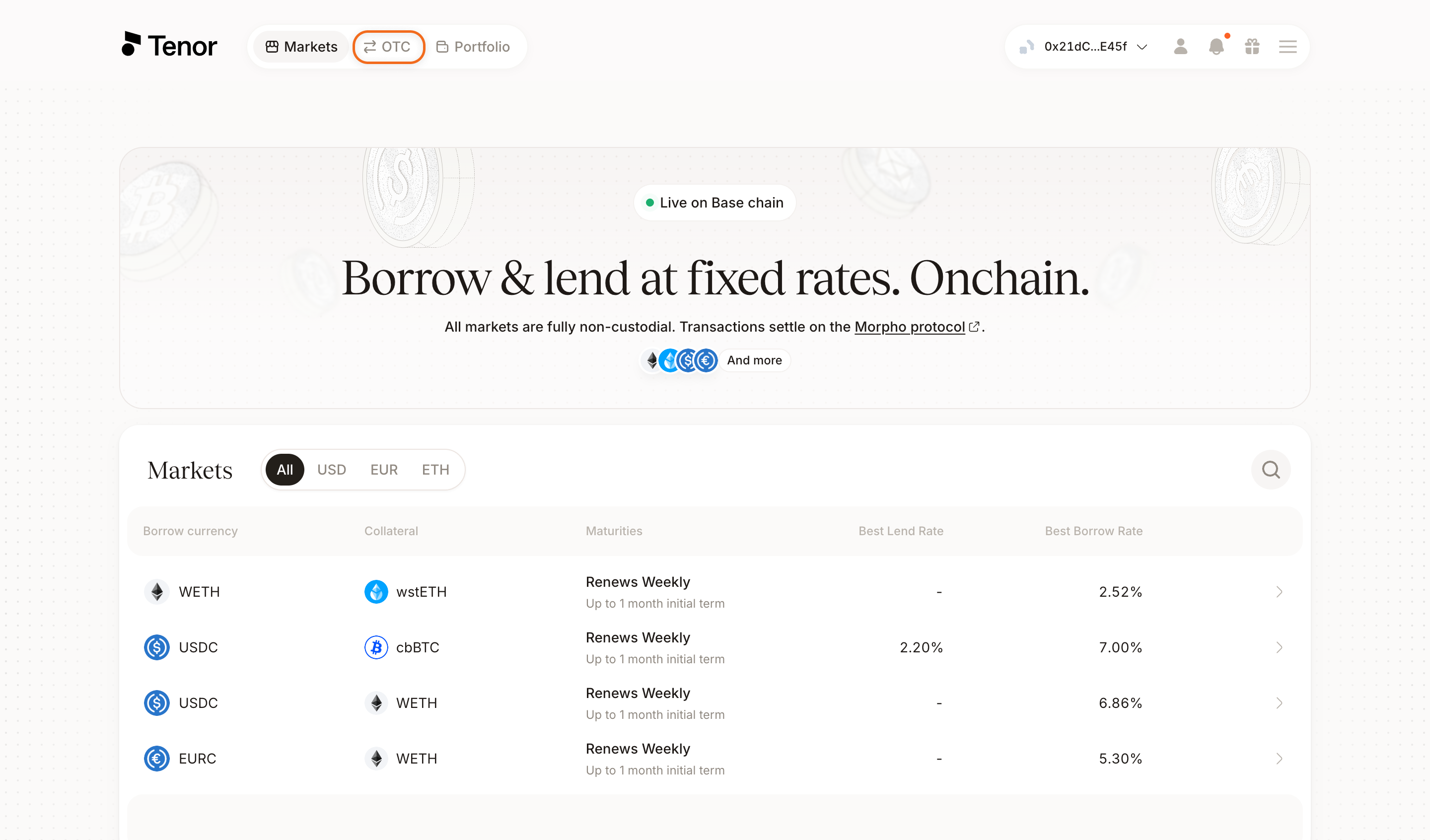
Go to the OTC tab in the navbar.
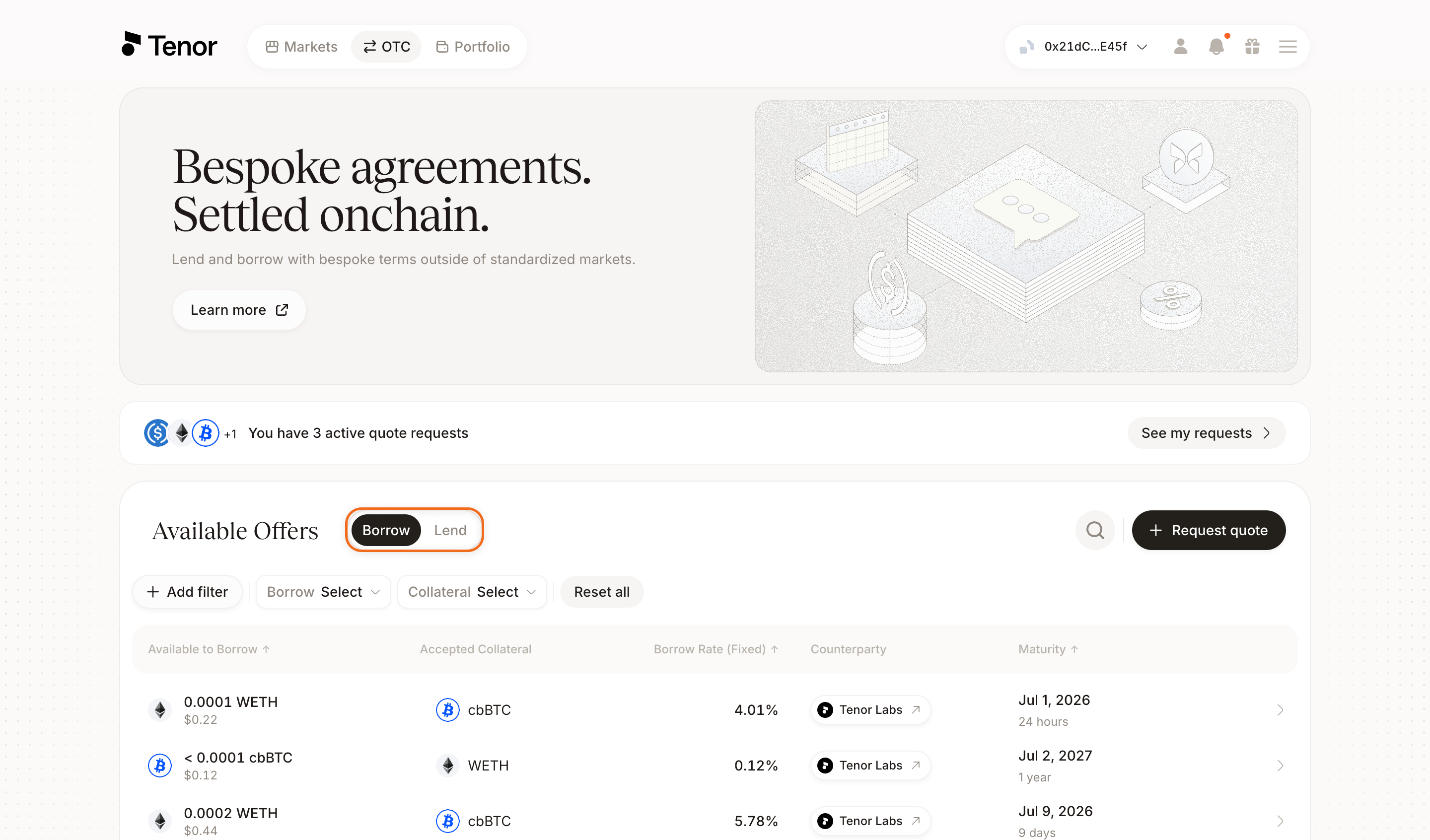
Select the Borrow tab to find offers to borrow against, or the Lend tab to find offers to lend into. To narrow the list, you can optionally filter by the borrow or lend currency and by collateral, or click Add filter to filter by rate, counterparty, and maturity.
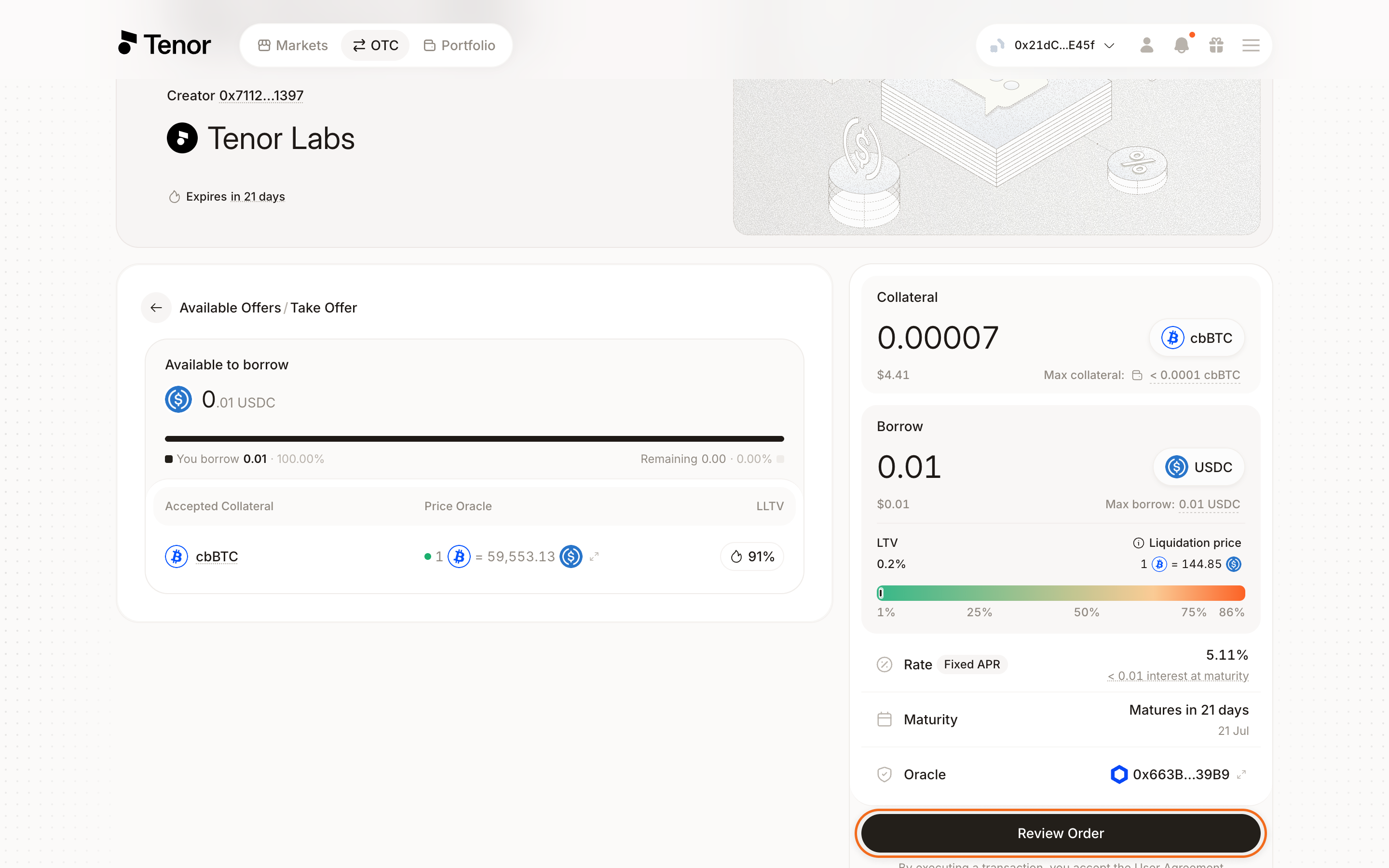
Select an offer to open its full terms, including the rate, collateral, LLTV, oracle, and maturity. Enter the amount you want to borrow or lend. When borrowing, also enter the amount of collateral to post. You set these amounts yourself, and you do not have to take the offer in full: you can borrow or lend only part of the amount offered, and as a borrower you can post more collateral than the minimum required. Click Review Order, then confirm and sign the transaction in your wallet. The position settles onchain and appears on your Portfolio page.
Request a Quote
When borrowing, you can request a quote instead of setting every term yourself. A request is a non-binding, offchain message sent to the counterparties you choose. It requires no signature and deposits no collateral.
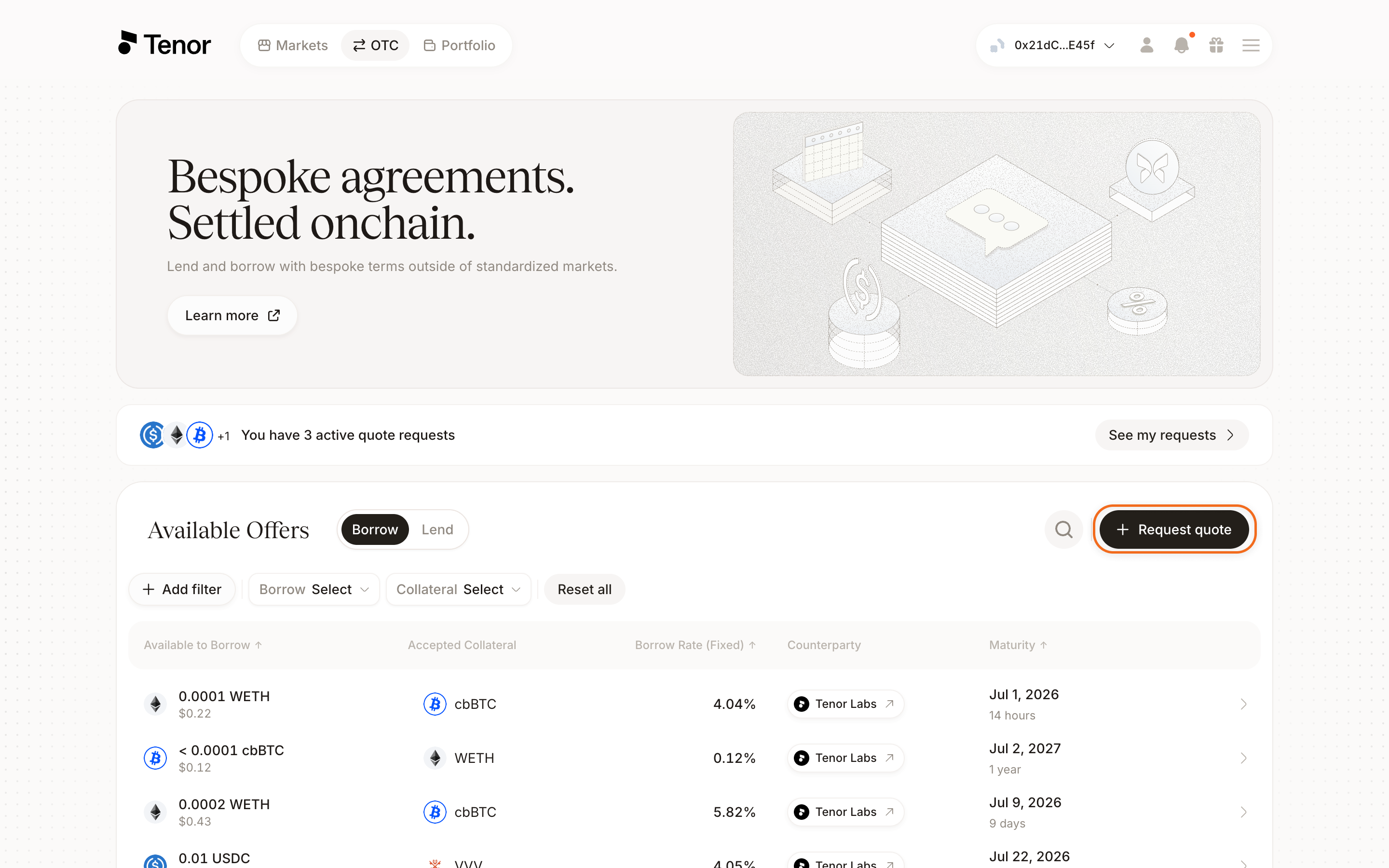
On the OTC page, make sure the Borrow tab is selected, then click Request Quote.
Enter the amount and currency you want to borrow, select the collateral you will post, and set the maturity for the position.
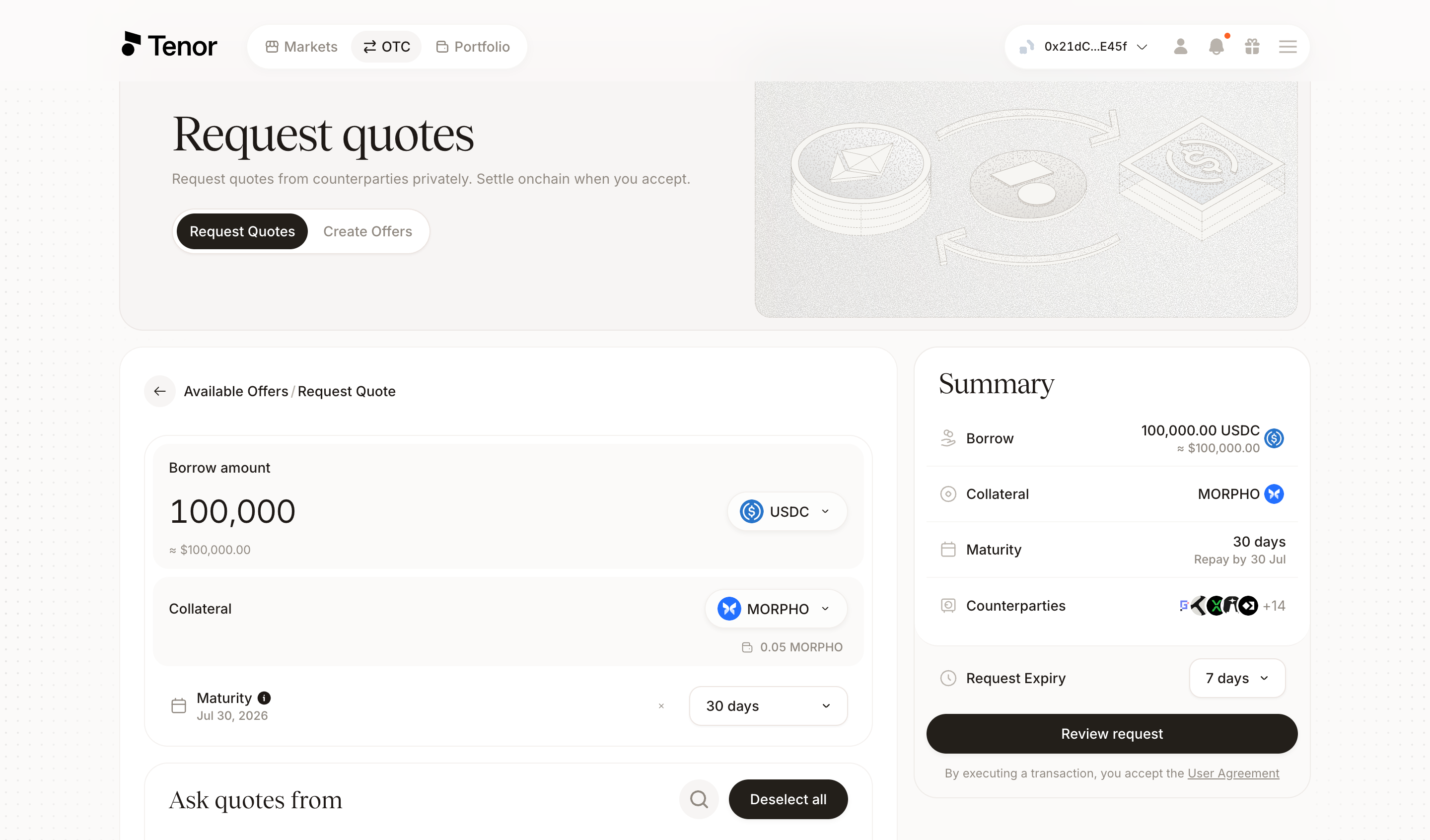
Select which counterparties to send the request to. You can target a specific set or send it to all of them. When your selection is ready, click Review request.
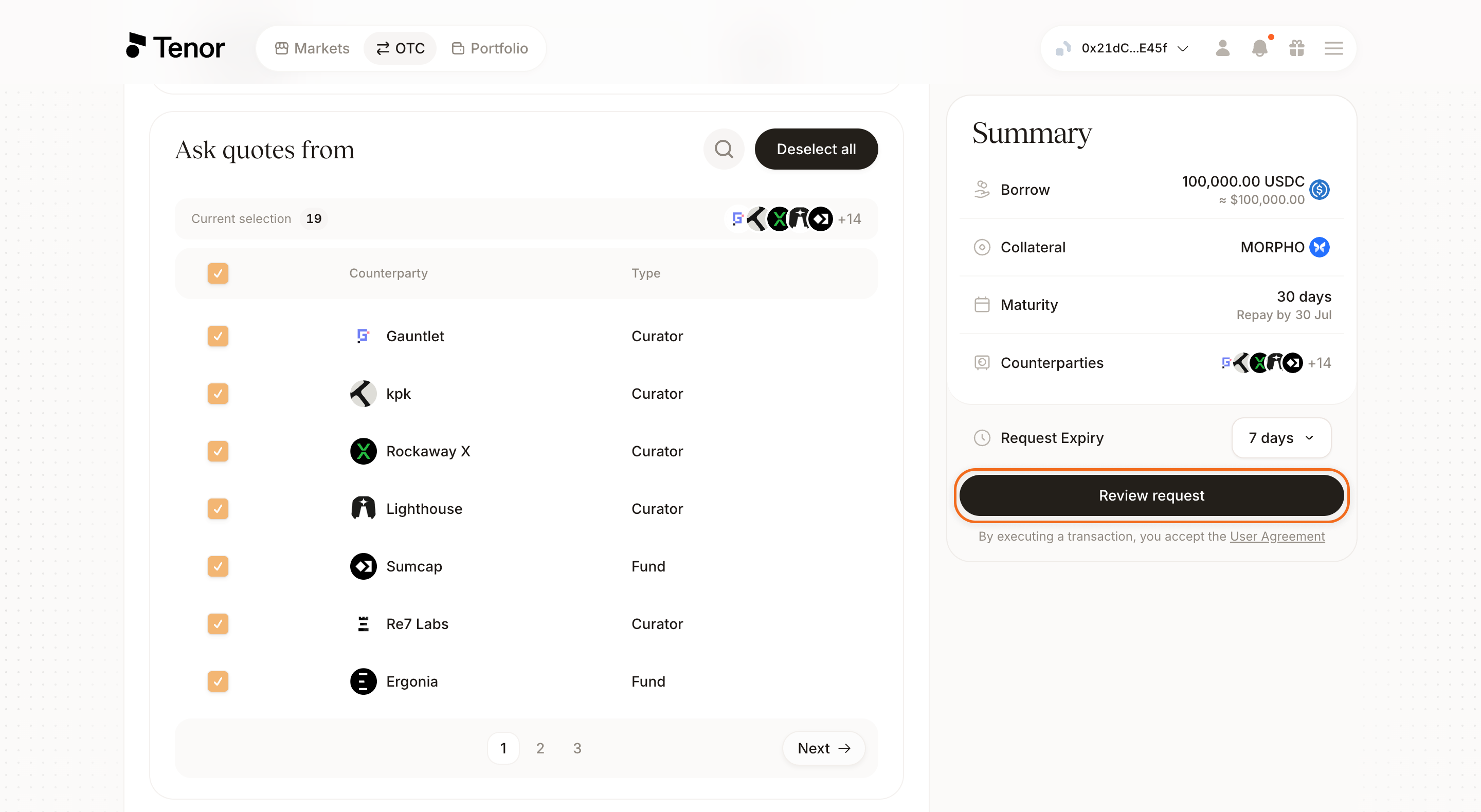
Optionally set the oracle, liquidation LTV, and request expiry, then send the request.
Counterparties respond with onchain offers that fill in the remaining terms, such as the rate. See Accept Offers to review and accept them.
Create an Offer
Creating an offer posts your exact terms onchain for a counterparty to accept. You can create both borrow and lend offers, so select the correct side before you set your terms.
- Borrow offer
- Lend offer
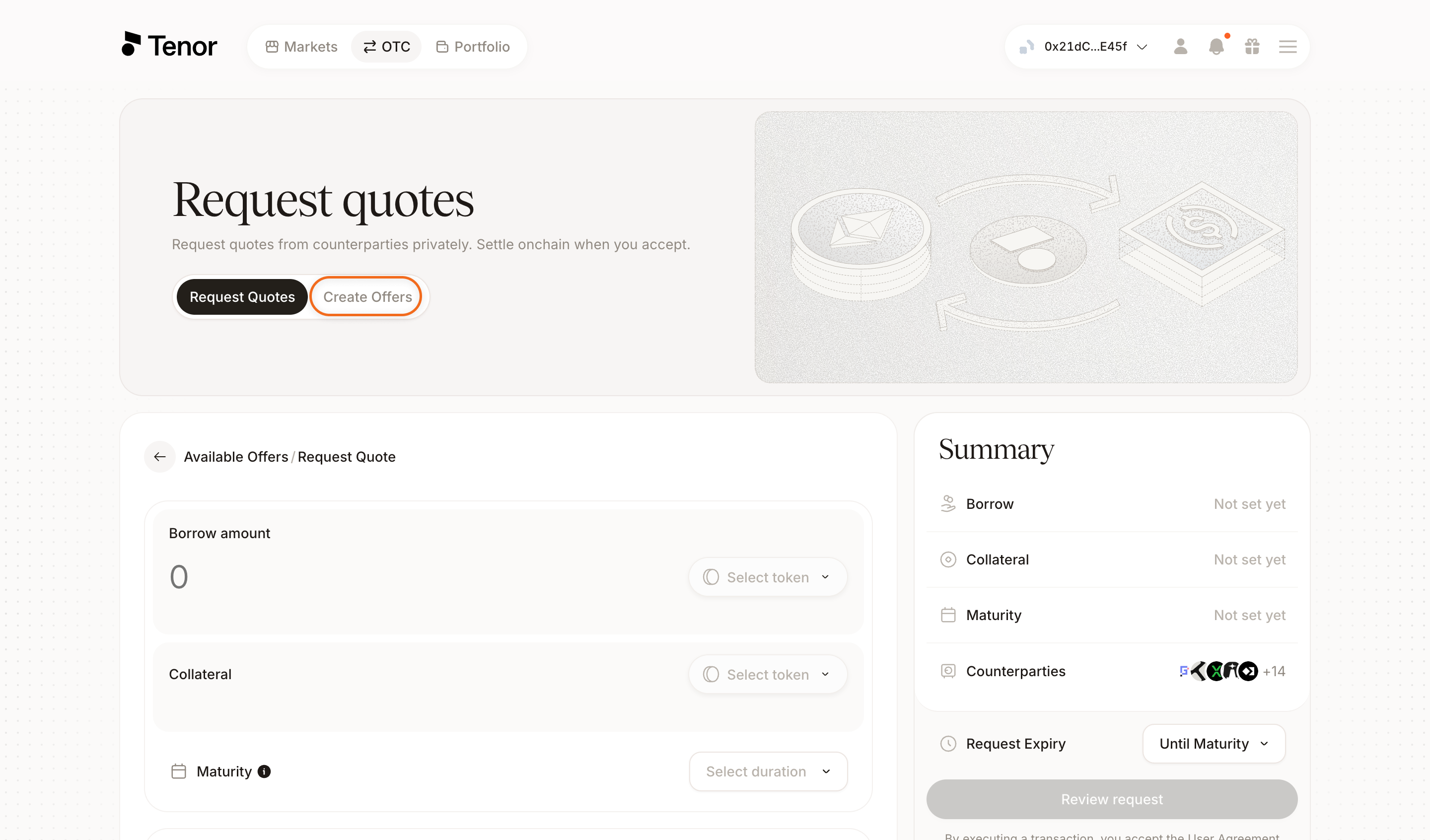
On the OTC page, click Request Quote to open the offer form.
At the top of the form, select the Create Offers tab, then choose Borrow.
Enter the amount and currency you want to borrow and the collateral you will post. Then set the price oracle, the liquidation LTV, and the max liquidation penalty.
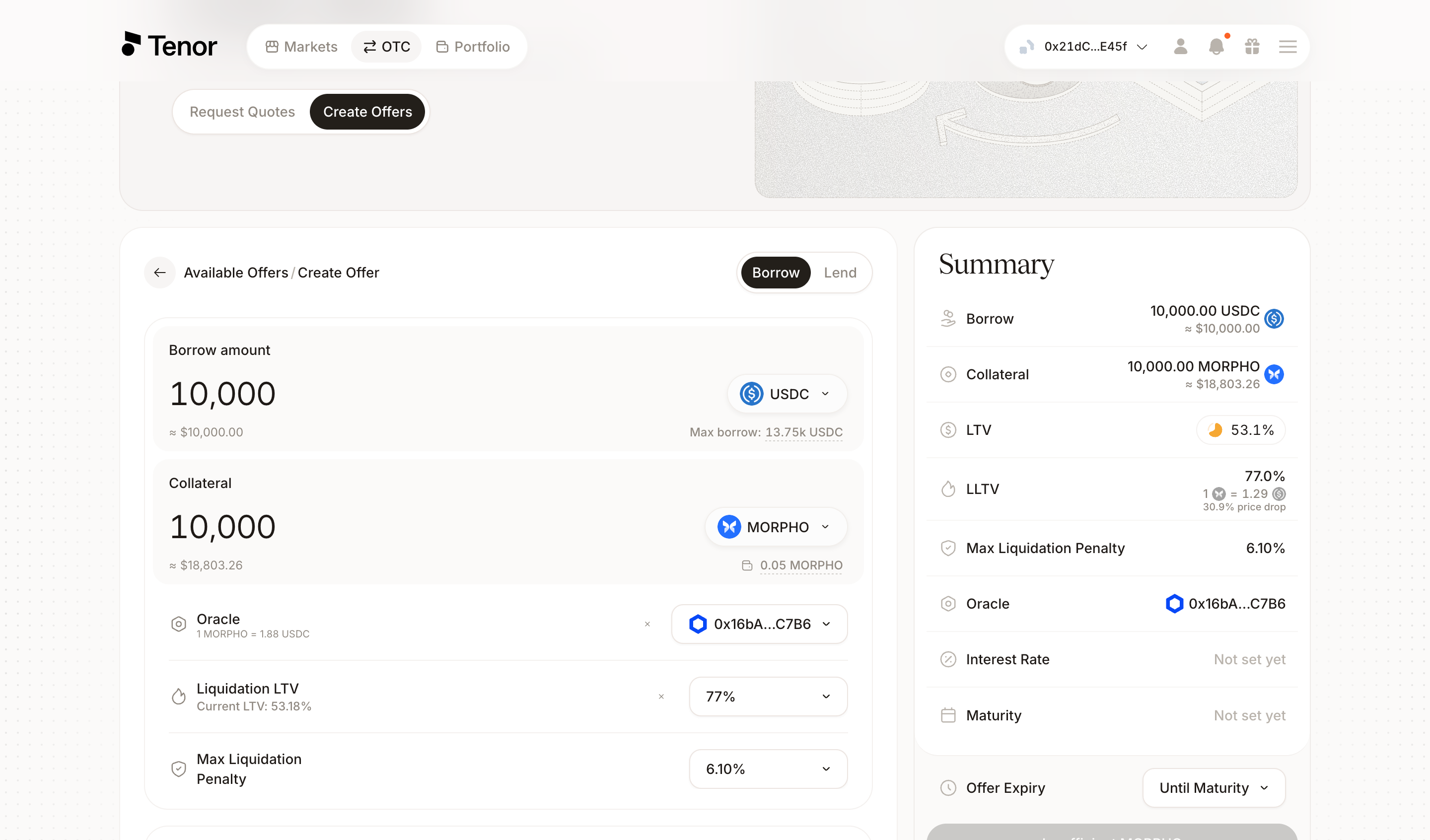
Set the interest rate (fixed APR) and select the maturity.
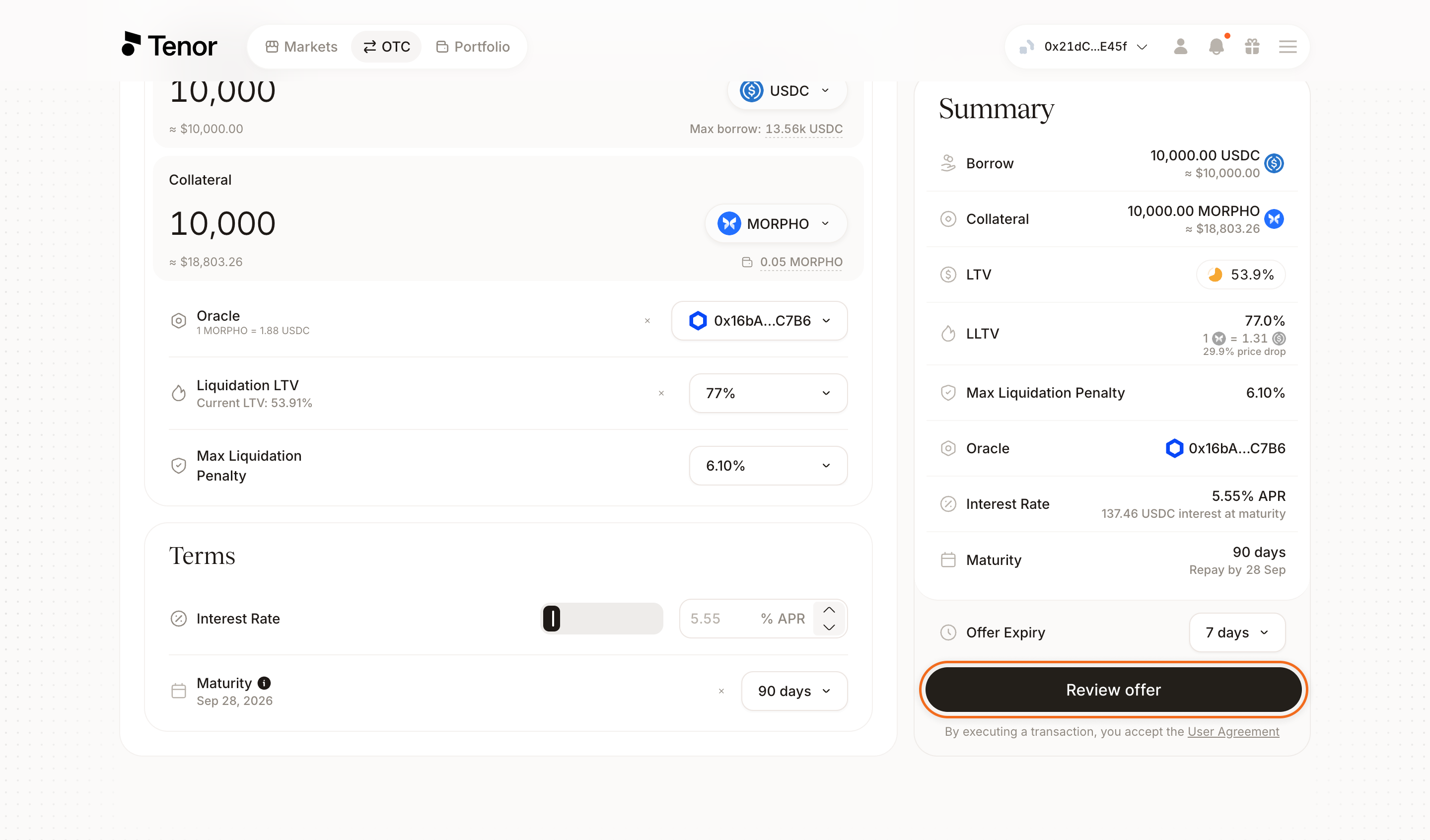
Optionally adjust the offer expiry or restrict the offer to specific counterparties. Click Review offer, then confirm and sign the transaction in your wallet to publish the offer onchain.
On the OTC page, select the Lend tab, then click Create offer.
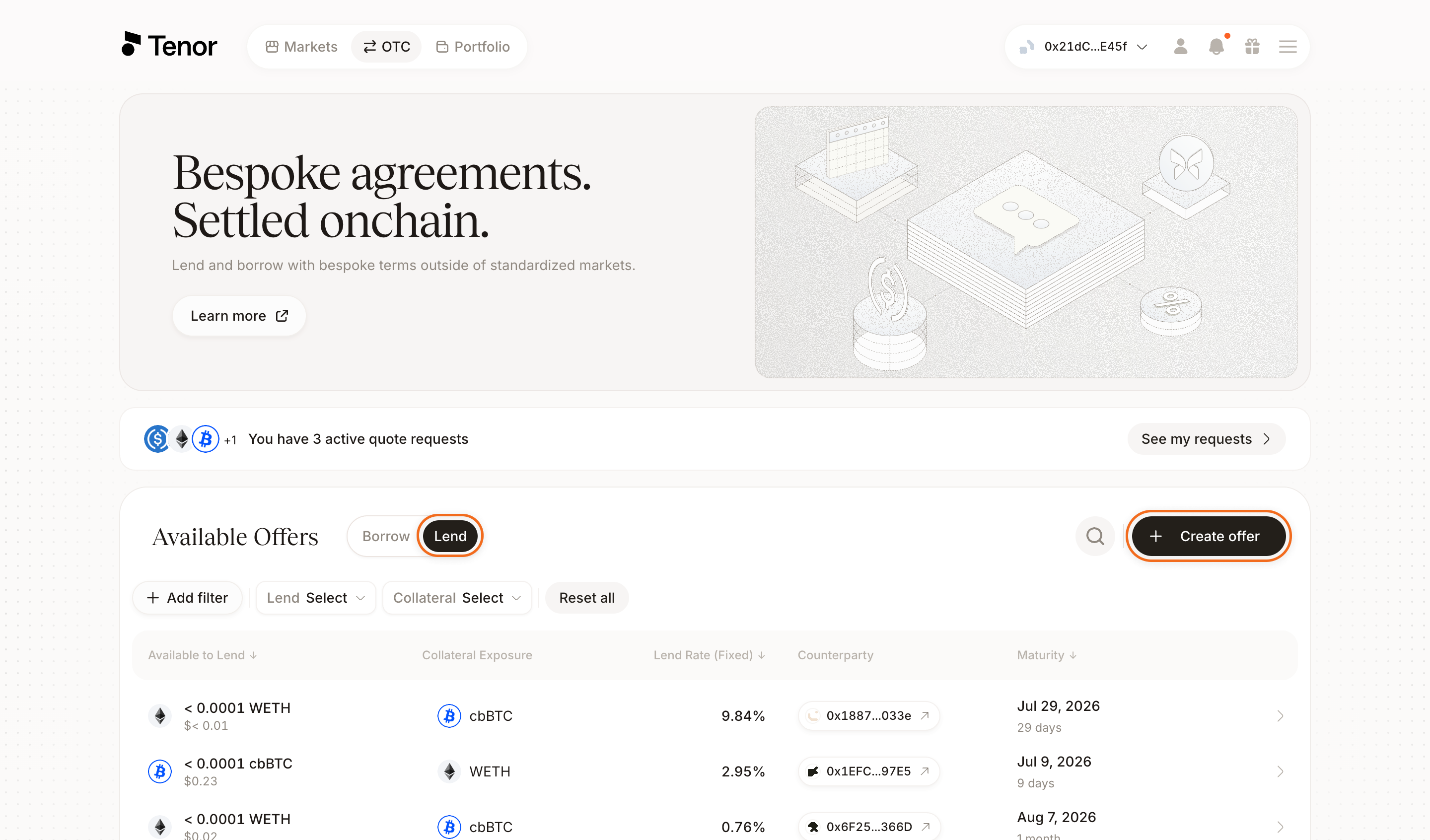
Enter the amount and currency you want to lend and the collateral you accept. Then set the price oracle, the liquidation LTV, and the max liquidation penalty.
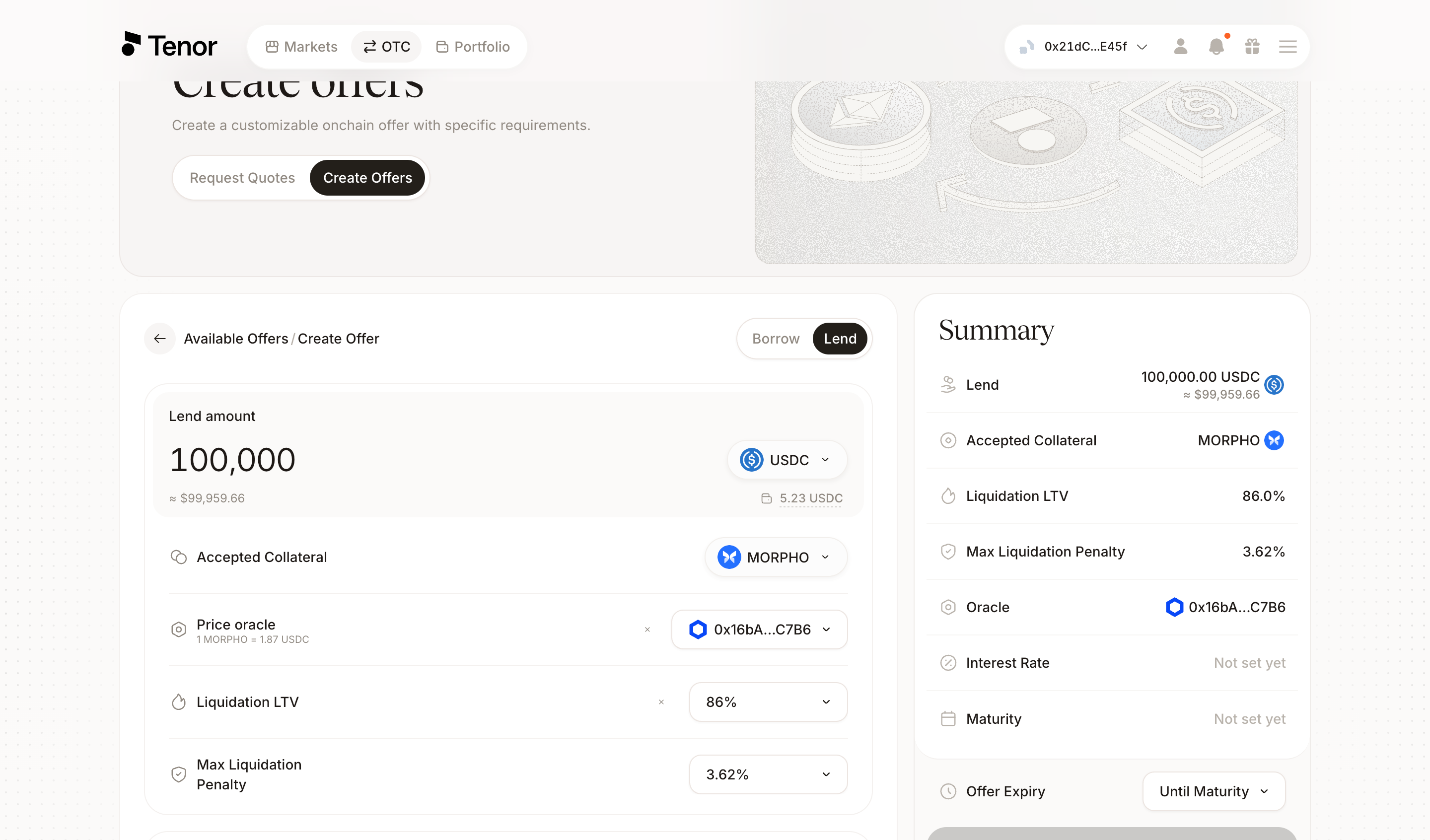
Set the interest rate (fixed APR) and select the maturity.
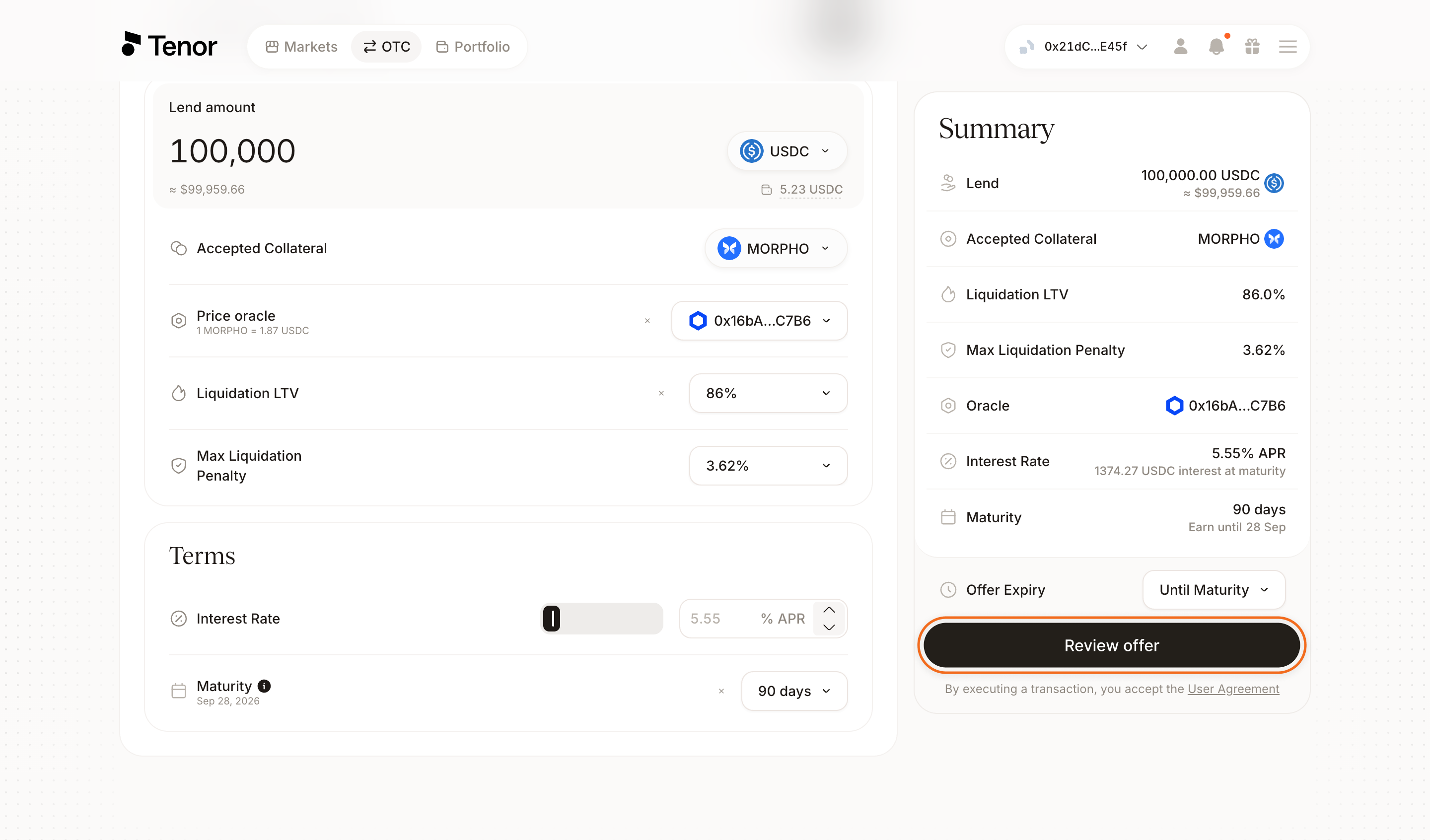
Optionally adjust the offer expiry or restrict the offer to specific counterparties. Click Review offer, then confirm and sign the transaction in your wallet to publish the offer onchain.
Your offer is now visible to counterparties, and any eligible counterparty can accept it. You can cancel it at any time before it is accepted.
Your Inbox
Your inbox collects the quote requests you have sent and the offers counterparties send back. You can open it from two places.
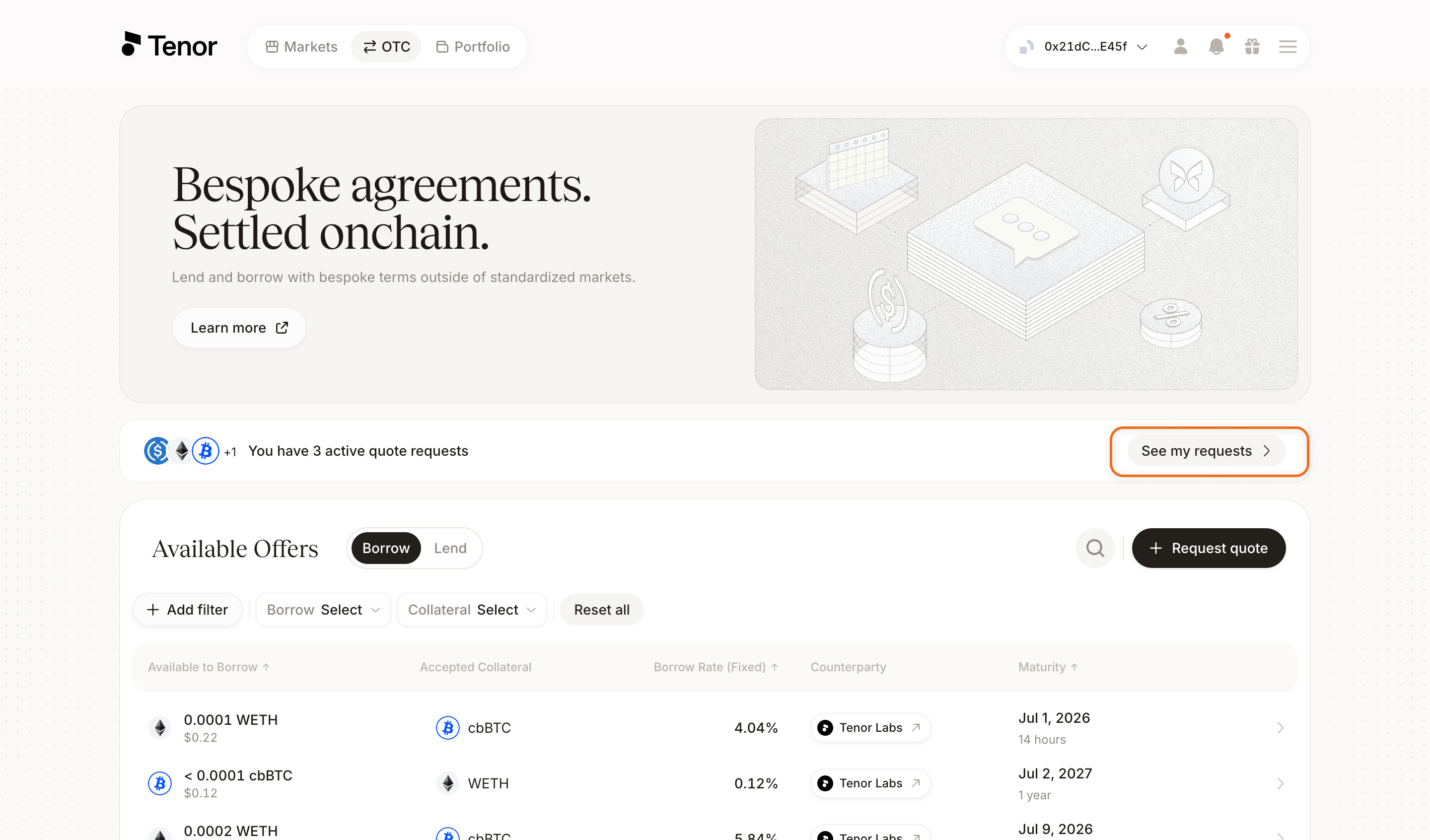
From the OTC page, click See my requests in the banner above the Available Offers table.
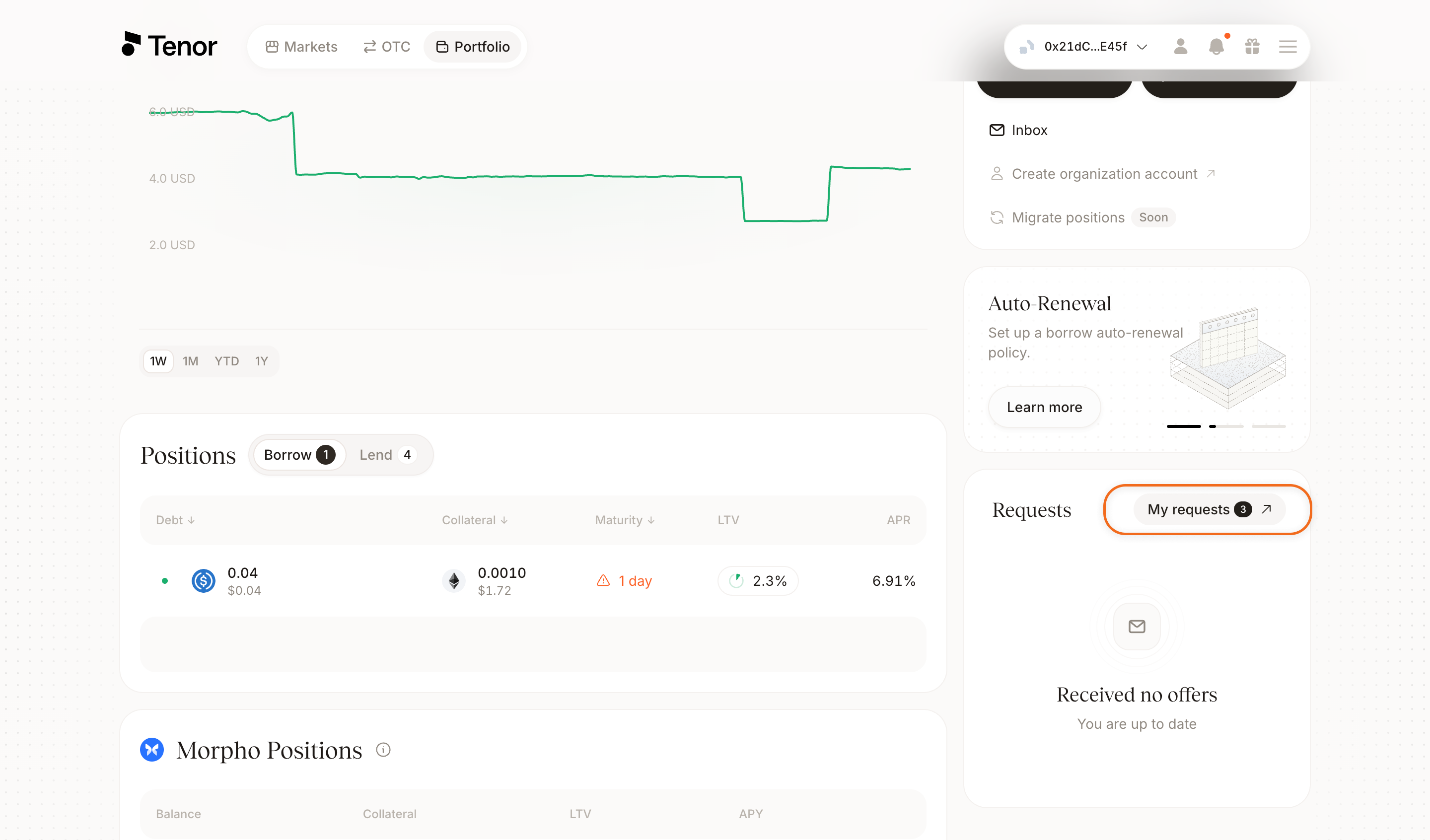
From the Portfolio page, click My requests in the Requests panel.
The inbox has two tabs. The Renewal Offers tab is where offers to renew your current positions appear, sent by curators and funds.
The My Quote Requests tab lists each request you have sent, with its borrow amount, collateral, max term, and expiry. The status column shows how many offers each request has received.
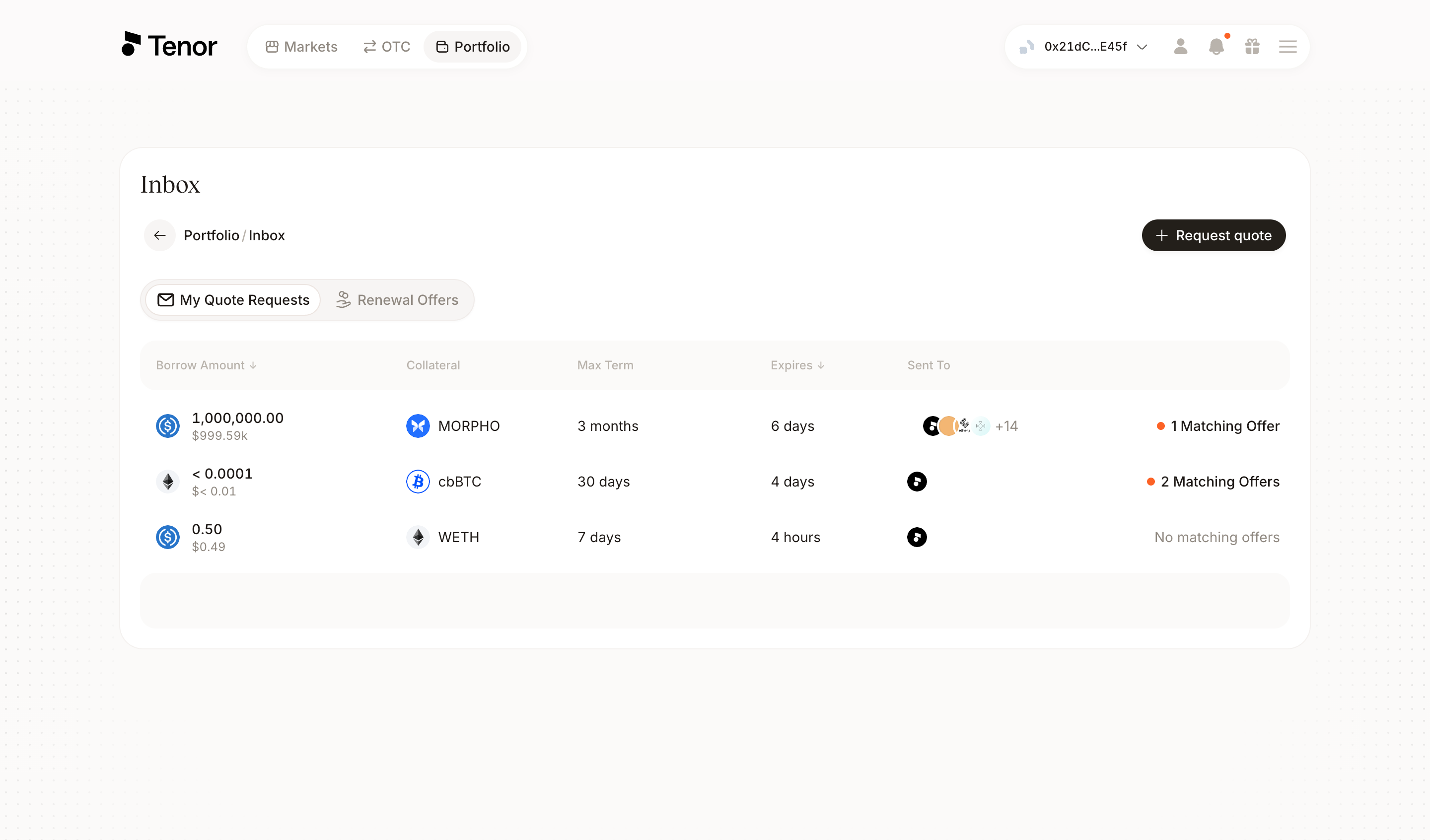
From the inbox, you can review a request's details or cancel it before it expires.
Accept an offer
Select a request marked with matching offers to open it. The Matching Offers table lists each offer's amount, LLTV, counterparty, and rate.
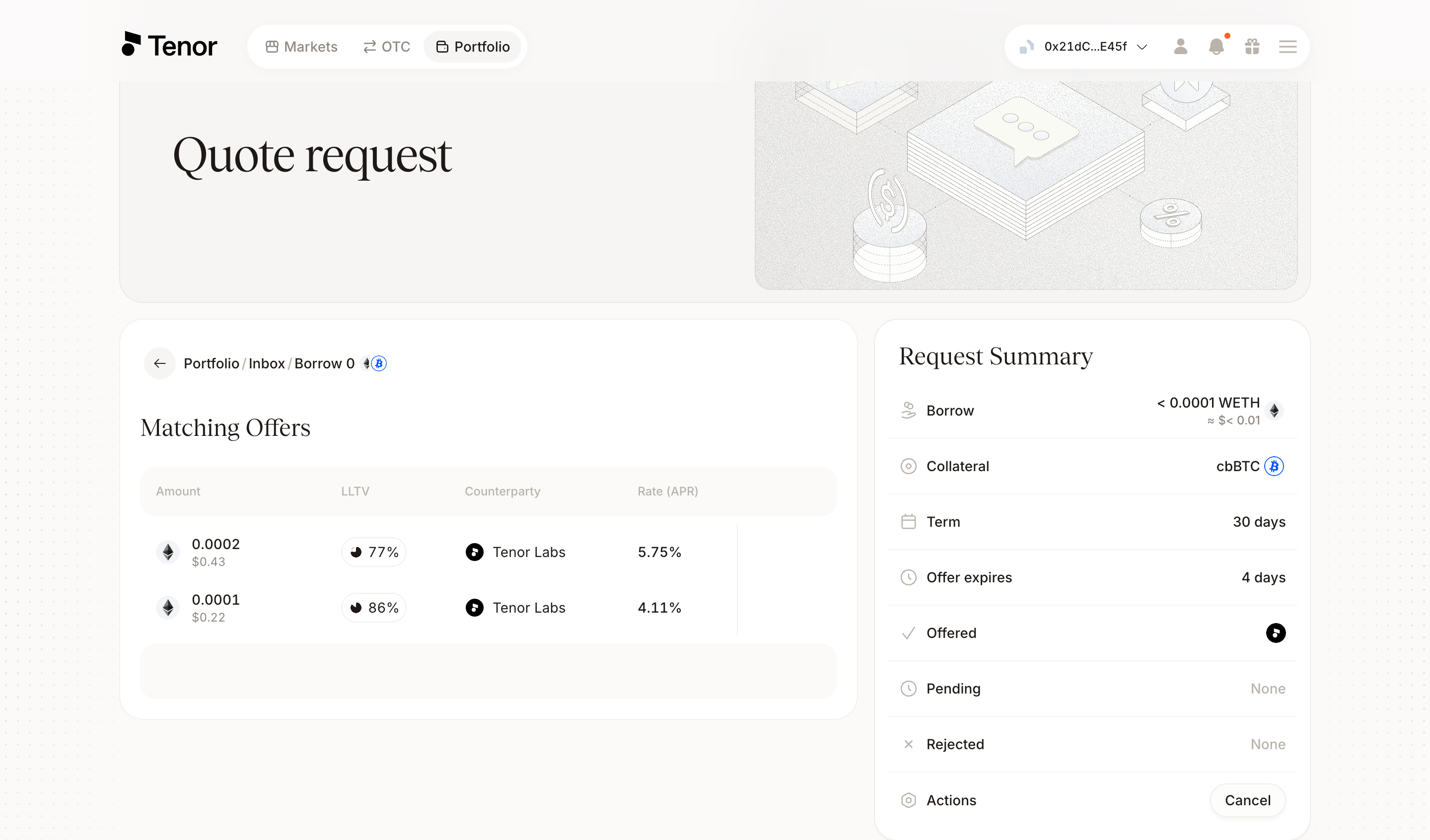
Select one of the matching offers to open its full terms, including the collateral, borrow amount, rate, maturity, and oracle. Click Review Order, then confirm and sign the transaction in your wallet. Your position is matched onchain with the counterparty.
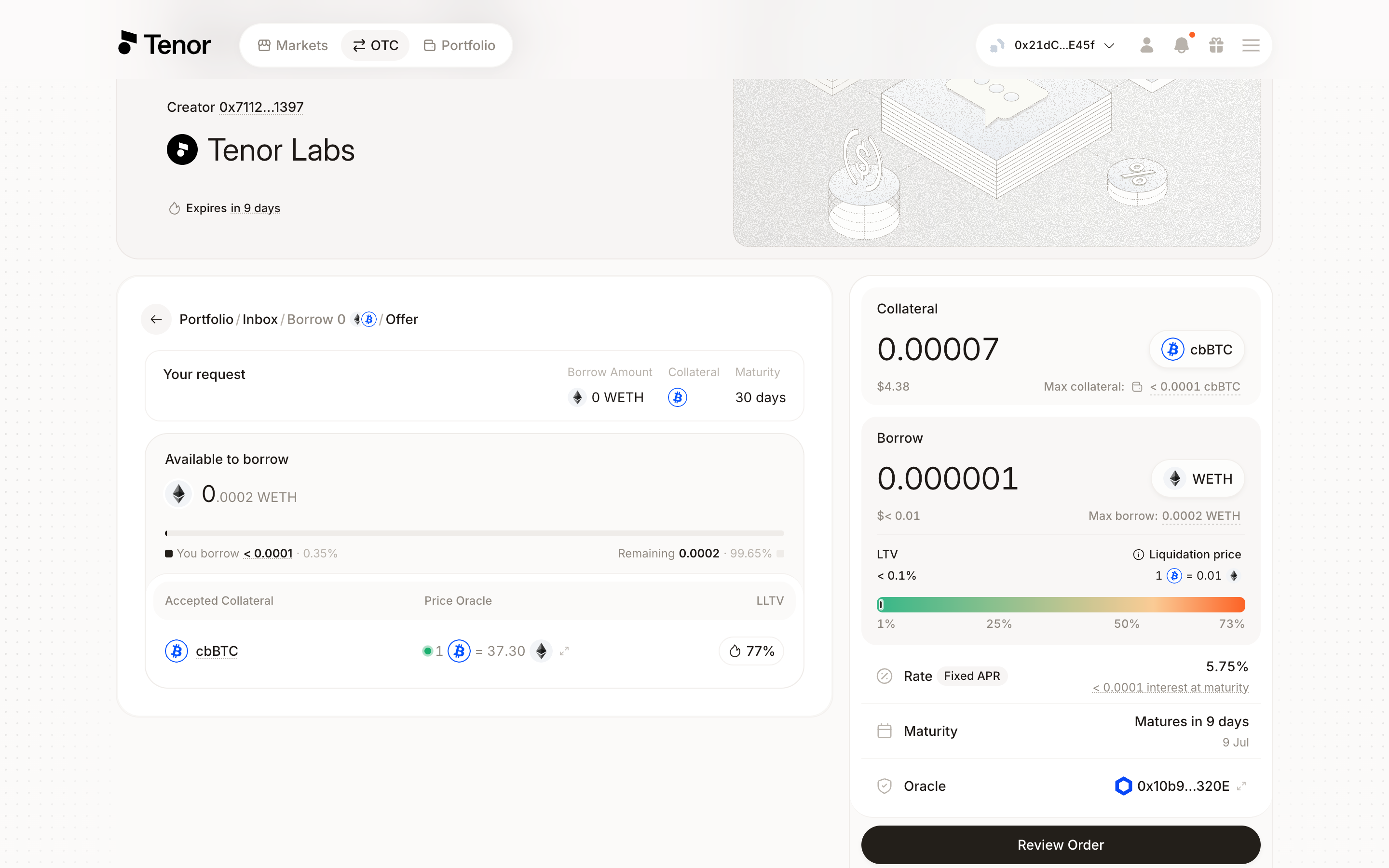
Your collateral is deposited into the Morpho Midnight smart contracts and the position settles onchain. Once the position is initiated, the funds you borrow are available to you and you can manage the position on the Portfolio page.